
Live Conversations
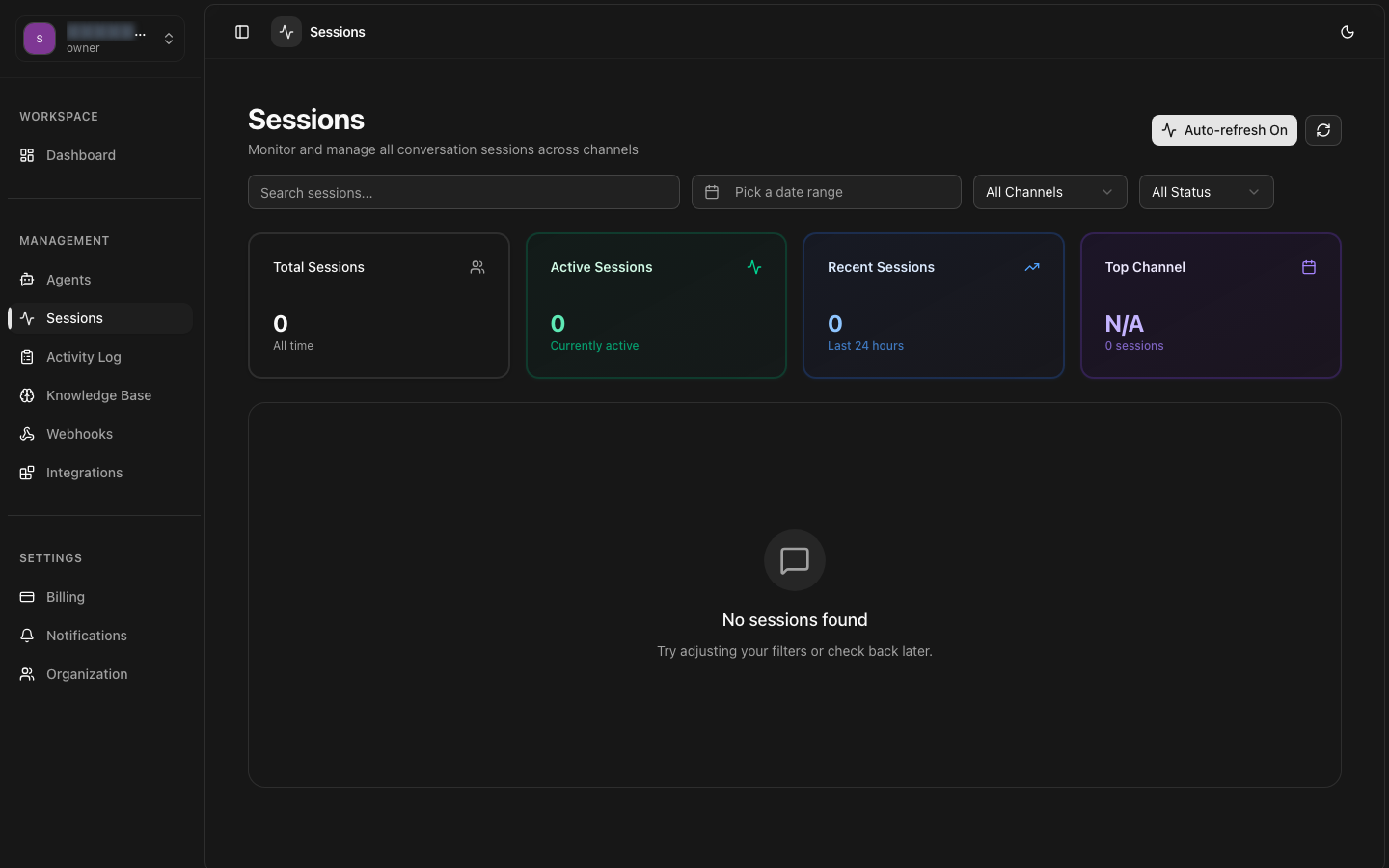
Monitor active conversations in real-time, stream messages as they happen, and intervene when necessary. The Live Conversations dashboard gives you complete visibility into ongoing sessions across all your deployed agents and channels.
Real-Time Monitoring
Watch conversations unfold with sub-second latency updates and auto-refresh
Message Streaming
View messages as they are generated with streaming token display
Intervention Controls
Pause, resume, or redirect conversations in real-time
Live Filtering
Filter active sessions by agent, channel, priority, and keyword
Status Indicators
Color-coded badges show conversation state at a glance
Instant Notifications
Desktop and in-app alerts for important conversation events
Overview
The Live Conversations dashboard provides a centralized real-time view of all active sessions across your organization. Unlike the general sessions list which shows historical data, the live view connects to a WebSocket stream that pushes conversation events as they occur, giving you the ability to monitor, analyze, and intervene in ongoing conversations.
WebSocket Connection
The dashboard establishes a persistent WebSocket connection to the 8bit-ai event gateway. This connection delivers sub-second updates about new messages, status changes, and system events without requiring polling.
Session Lifecycle Events
Each session emits events throughout its lifecycle: session_started, message_received, message_sent, agent_thinking, intervention_triggered, session_ended, and error_occurred. All events appear in the live feed with full context.
Multi-Agent Support
View conversations across all your agents simultaneously. Each agent's sessions are grouped and color-coded for easy identification. Switch between a unified view and agent-specific views using the agent filter.
Channel Awareness
Sessions from different channels (Web, Phone, Telegram, WhatsApp, Mobile SDK, SIP) are displayed with channel-specific badges and icons. The message format adapts to the channel's native representation when available.
Live Dashboard
The live dashboard is the central interface for monitoring active conversations. It updates in real-time and provides comprehensive controls for managing your view.
Dashboard Components
Active Sessions Panel
A scrollable list of all currently active sessions, each showing the agent name, channel, user identifier, elapsed time, and latest message preview. Sessions are sorted by most recent activity by default.
Conversation Detail View
Click any active session to open a detailed conversation view showing the full transcript, real-time message streaming, and intervention controls.
Metrics Bar
A compact bar showing real-time aggregate metrics: total active sessions, sessions started in the last hour, average response time, and intervention rate.
Activity Log
A chronologically ordered event feed showing all system-wide activity, including session starts, ends, errors, and interventions across all agents.
Auto-Refresh & WebSocket Mode
The dashboard supports two modes for receiving updates. WebSocket mode provides real-time event-driven updates with minimal latency. Fallback polling mode uses 5-second HTTP polling when WebSocket connections are unavailable.
Connection Features:
- WebSocket: Persistent bi-directional connection with automatic reconnection
- Polling Fallback: Automatic fallback to HTTP polling with configurable interval
- Connection Status: Visual indicator showing connected, reconnecting, or disconnected state
- Latency Monitor: Displays current WebSocket latency in milliseconds
Session Cards
Each active session is represented as a card in the dashboard. Cards provide a comprehensive snapshot of the conversation at a glance.
| Element | Description | Example |
|---|---|---|
| Agent Badge | Agent name with colored identifier dot | ● Support Bot |
| Channel Icon | Channel-specific icon and label | |
| User Info | User name or identifier from session metadata | John D. |
| Duration | Elapsed time since session started | 12:34 |
| Status | Current conversation state with animation | Agent Typing... |
| Preview | Last message preview (truncated to 80 chars) | Let me check that for you... |
Message Stream
The message stream displays conversation messages in real-time as they are exchanged between users and agents. It supports token-level streaming for agent responses, providing a typewriter-like effect that shows the agent's response as it is being generated.
Streaming Display
When an agent is generating a response, the message stream shows tokens as they arrive from the LLM. This provides immediate feedback and reduces perceived latency for human monitors.
Streaming States:
- Idle: Waiting for user message, no active generation
- Thinking: Agent is processing and preparing a response (shows animated indicator)
- Streaming: Tokens are being received and displayed character by character
- Complete: Full response has been received and rendered
Message Formats
The message stream supports multiple content formats based on the channel and session type.
Text Messages
Standard text content with markdown rendering. Supports bold, italic, lists, code blocks, and inline links. Channel-specific formatting (Telegram markdown, WhatsApp formatting) is preserved.
Rich Media
Images, documents, audio recordings, and video messages are displayed with inline previews where possible. File type, size, and download links are shown for attachments.
System Messages
Events such as user joined, agent transferred, handoff initiated, and system notifications are displayed with distinct styling and appropriate icons.
Voice Transcripts
For voice sessions, speech-to-text transcripts are displayed in real-time with speaker identification and confidence scores when available.
WebSocket API
Programmatically connect to the live message stream using the WebSocket API for custom monitoring solutions.
Streaming vs Batch
Intervention Controls
Live Conversations includes powerful intervention capabilities that let administrators and supervisors take control of ongoing conversations when needed. Interventions are logged and can be reviewed as part of the session's permanent record.
Intervention Types
Pause Session
Temporarily pause an active conversation. The user sees a message that the conversation has been paused and will resume shortly. The agent stops generating responses until resumed.
Resume Session
Resume a paused conversation. The agent resumes from where it left off, and the user is notified that the conversation has resumed.
Send System Message
Insert a system message into the conversation visible to the user. Useful for providing information, apologizing for delays, or explaining interventions.
Override Agent Response
Replace the agent's pending or next response with custom content. The override is logged and the original response is discarded.
Transfer Session
Transfer a conversation to a different agent or to a human handoff queue. The session context is preserved during the transfer.
Co-Browse Mode
Enter a silent monitoring mode where you can observe the conversation without either party knowing. Co-browsing is fully logged for compliance.
Intervention Workflow
When an intervention is triggered, the following sequence occurs to ensure a smooth experience for all parties.
Intervention Logging
All interventions are recorded with full audit information. The intervention log includes the admin who performed the action, the type of intervention, the reason, and the exact timestamp.
| Field | Description | Example |
|---|---|---|
| intervention_id | Unique identifier for this intervention | int_9k4m2x1p |
| session_id | The session that was intervened upon | ses_abc123xyz |
| admin_id | Admin who performed the intervention | admin_xyz789 |
| type | Type of intervention action | pause |
| reason | Required reason for the intervention | Escalating to senior support |
| timestamp | ISO 8601 timestamp of the intervention | 2026-06-24T16:30:00Z |
Intervention Permissions
sessions:intervene permission. Only users with the admin or supervisor role can perform interventions. All interventions are permanently logged for audit and compliance purposes.Live Filtering
Filter the live dashboard to focus on specific sessions, agents, channels, or activity types. Filters apply instantly and persist across page refreshes within a browser session.
Filter Types
Agent Filter
Select specific agents to monitor. Supports single and multi-select with checkboxes. A "Select All" option is available.
Channel Filter
Show sessions from specific channels only. Useful when monitoring a newly deployed integration.
Priority Filter
Filter by conversation priority (low, normal, high, urgent). High and urgent sessions are highlighted in the list.
Keyword Search
Search across active session messages in real-time. Matches are highlighted in the conversation view.
Status Filter
Filter by conversation state: Active, Thinking, Streaming, Paused, or Error state.
Duration Filter
Show sessions that have been active for more than or less than a specified duration.
Saved Views
Save frequently used filter combinations as named views for quick access. Saved views are stored per-user and available across browser sessions.
Example Saved Views:
- High Priority: Priority = Urgent or High, all agents
- WhatsApp Monitoring: Channel = WhatsApp, all agents
- Errors Only: Status = Error, all channels
- Long Sessions: Duration > 10 minutes, Status = Active