
Telegram Integration
Connect your AI agent to Telegram and enable automated conversations with millions of users worldwide. Set up a Telegram bot in minutes with webhook support, real-time message streaming, and comprehensive security.
Real-time Messaging
Webhook-based architecture for instant message delivery and streaming responses
Secure & Verified
Secret token verification for every webhook request ensures authenticity
Global Reach
Deploy your AI agent to Telegram's 900M+ users worldwide
Overview
The Telegram integration allows you to connect your AI agent to a Telegram bot. Once configured, your agent can receive and respond to messages from Telegram users in real-time. The integration uses Telegram's webhook API for instant message delivery and supports streaming responses with live message updates as the AI generates its reply.
How It Works
When a user sends a message to your Telegram bot, Telegram forwards it to your agent via webhook. Your agent processes the message using its configured LLM and knowledge base, then streams the response back to Telegram. The user sees the reply update in real-time as the AI generates it.
Key Features
- Instant webhook-based message delivery
- Real-time streaming responses with live updates
- Persistent conversation history per user
- Typing indicators and status updates
- Secure webhook verification with secret tokens
- Single bot per agent (prevents conflicts)
Setup Guide
Follow these steps to set up your Telegram bot and connect it to your AI agent.
Prerequisites
- A Telegram account
- An active AI agent in 8bit-ai
- Access to the Telegram mobile or desktop app
Create Your Telegram Bot
Use Telegram's BotFather to create a new bot and obtain your bot token.
- aOpen Telegram and search for
@BotFather - bStart a chat and send the command
/newbot - cChoose a name for your bot (e.g., "My Support Bot")
- dChoose a username ending in "bot" (e.g., "mysupport_bot")
- eBotFather will provide your bot token
123456789:ABCdefGHIjklMNOpqrsTUVwxyzExample token format
Keep Your Token Secret!
Your bot token is like a password. Anyone with this token can control your bot. Never share it publicly or commit it to version control.
Add Integration to Platform
Configure the Telegram integration in the 8bit-ai dashboard.
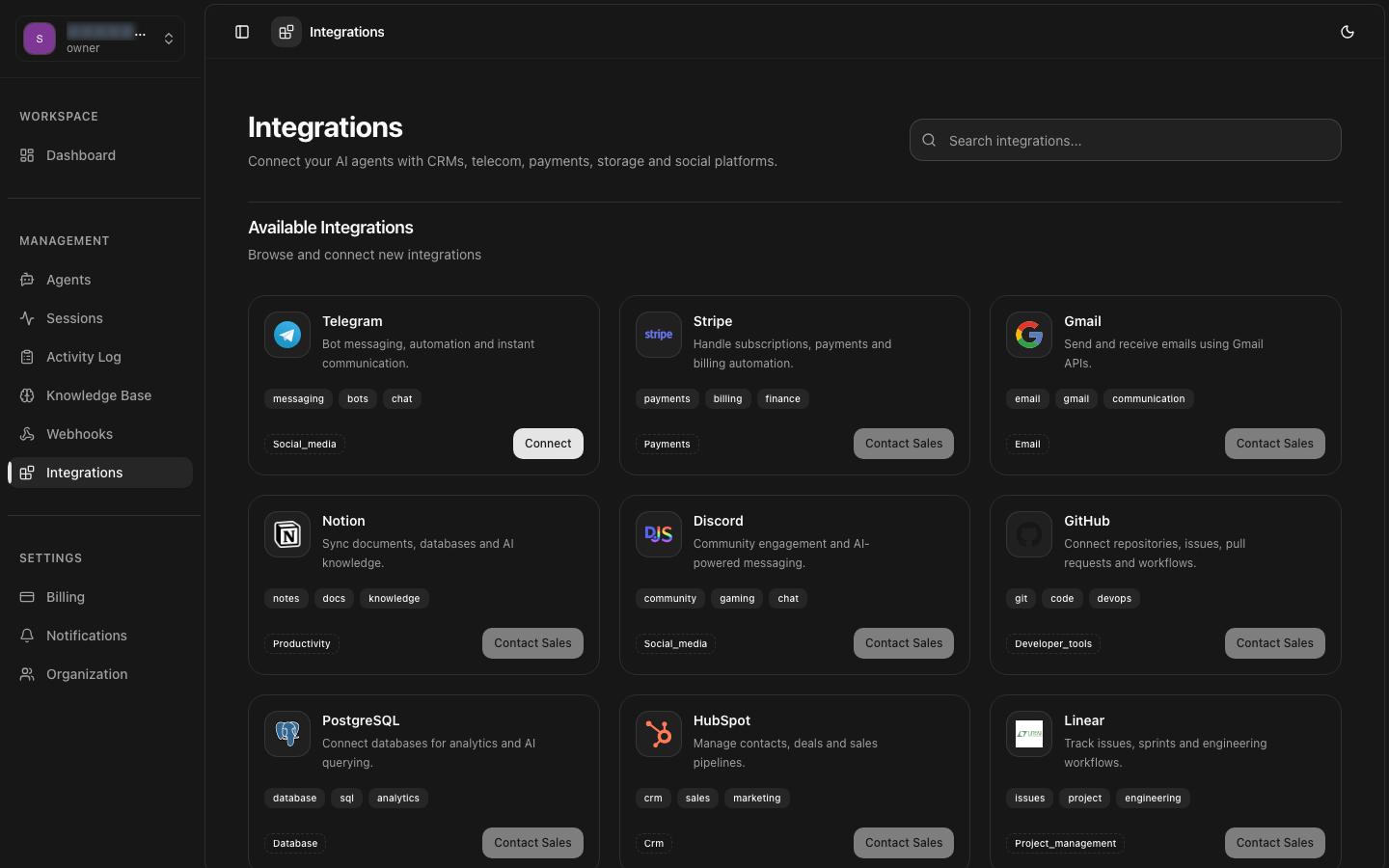
- aNavigate to Integrations in your dashboard
- bClick on the Telegram integration card
- cEnter a descriptive name for your integration (e.g., "Support Bot")
- dPaste your bot token from BotFather
- eClick Connect to save the integration
Link to Agent & Configure Webhook
Connect your Telegram bot to an agent and set up the webhook automatically.
- aNavigate to your agent's settings page
- bGo to the Integrations tab
- cFind your Telegram integration in "Available Integrations"
- dClick Add to Agent
- eThe setup guide will open automatically - click Link & Setup
Automatic Webhook Configuration
The webhook will be configured automatically when you link the integration. The system generates a unique webhook URL and secret token, then registers it with Telegram.
One Bot Per Agent
Each Telegram bot can only be linked to one agent at a time. This prevents message routing conflicts and ensures consistent behavior.
Test Your Bot
Verify that your bot is working correctly.
- aOpen Telegram on your device
- bSearch for your bot username (e.g., @mysupport_bot)
- cClick Start to begin the conversation
- dSend a test message (e.g., "Hello!")
- eWatch your AI agent respond in real-time!
What to Expect
You should see a typing indicator, followed by the AI's response appearing and updating in real-time as it's generated. The conversation will continue naturally, with full context from previous messages.
Webhook Configuration
Understanding how webhooks work helps you troubleshoot and optimize your integration.
Webhook URL
When you link a Telegram integration to an agent, the system automatically generates a unique webhook URL:
https://your-domain.com/api/telegram/webhook/{agent_id}Secret Token
A UUID-based secret token is generated and registered with Telegram. Every webhook request includes this token in the header for verification:
X-Telegram-Bot-Api-Secret-Token: {generated_uuid}Message Flow
- User sends message to your Telegram bot
- Telegram forwards message to webhook URL with secret token
- Backend verifies secret token matches stored value
- Agent processes message using configured LLM and knowledge base
- Response is streamed back to Telegram with live updates
- User sees reply update in real-time as AI generates it
Security & Privacy
Your Telegram integration is secured with multiple layers of protection.
Token Encryption
Bot tokens are stored encrypted in the database and never exposed in logs or API responses.
Webhook Verification
Every webhook request is verified with a secret token. Invalid requests are rejected with 403 Forbidden.
HTTPS Required
Telegram requires HTTPS for webhook URLs. All communications are encrypted in transit.
Isolated Conversations
Each user's conversation is isolated using their Telegram chat ID as a unique thread identifier.
Data Privacy
Troubleshooting
Common issues and their solutions.
Bot Doesn't Respond to Messages
Possible causes:
- Integration is not linked to an active agent
- Agent status is set to "Draft" instead of "Active"
- Webhook configuration failed or was not completed
- Network connectivity issues
Solutions:
- Verify integration shows in the agent's "Integrations" tab
- Check agent status is "Active" in agent settings
- Open the setup guide and click "Setup Webhook" to retry
- Check webhook status indicator shows green/success state
Invalid Token Error
Possible causes:
- Bot token was copied incorrectly
- Extra spaces or characters in the token
- Token was revoked in BotFather
Solutions:
- Copy the entire token from BotFather (starts with numbers, contains a colon)
- Ensure no extra spaces before or after the token
- Check token format:
123456789:ABC... - If token is invalid, create a new bot with BotFather
Bot Already Linked to Another Agent Error
Cause:
Each Telegram bot can only be linked to one agent at a time to prevent routing conflicts.
Solutions:
- Remove the integration from the current agent first
- Create a new bot with BotFather if you need multiple agent connections
- Each bot needs a unique username and token
Slow or Delayed Responses
Possible causes:
- LLM model is slow or experiencing high load
- Knowledge base queries are taking too long
- Large conversation history
Solutions:
- Use faster models like GPT-3.5 or Claude Haiku for time-sensitive applications
- Optimize knowledge base size and indexing
- Reduce max tokens in agent LLM configuration
- Consider conversation history limits
Webhook Setup Failed
Possible causes:
- Invalid bot token
- Network connectivity issues
- Telegram API temporarily unavailable
- Domain SSL certificate issues
Solutions:
- Verify bot token is correct
- Check internet connection
- Wait a few minutes and retry webhook setup
- Ensure your domain has a valid SSL certificate
- Check webhook status with the "Retry Setup" button
Still Having Issues?
Best Practices
Tips for optimizing your Telegram bot integration.
Choose a Clear Bot Name
Use a descriptive username that clearly indicates the bot's purpose. Users should understand what the bot does from its name alone (e.g., @techsupport_bot, @sales_assistant_bot).
Set Bot Description & About Text
Use BotFather's /setdescription and /setabouttext commands to add helpful information that users see when they start the bot.
Add a Bot Avatar
Use /setuserpic in BotFather to add a profile picture that represents your brand or the bot's function.
Test Thoroughly Before Launch
Send various types of messages to your bot before making it public. Test edge cases, long messages, rapid messages, and different conversation flows.
Monitor Conversation Logs
Regularly review session logs in your dashboard to identify issues, understand user needs, and improve your agent's system prompt and knowledge base.
Optimize Response Speed
Use streaming responses to provide real-time feedback. Choose faster LLM models for time-sensitive applications. Consider reducing max_tokens for quicker completions.
Handle Conversation Context
Design your agent's system prompt to acknowledge conversation history appropriately. Users expect the bot to remember previous messages in the same chat.
Secure Your Bot Token
Never share your bot token publicly. If it's compromised, use BotFather's /revoke command to invalidate it and get a new token.
API Reference
Backend endpoints used by the Telegram integration.
POST/api/telegram/webhook/setup/{user_integration_id}Configure webhook for a Telegram integration. Automatically called when you link an integration to an agent.
Request Body:
Response:
GET/api/telegram/webhook/status/{user_integration_id}Get current webhook status from Telegram API. Useful for verifying configuration.
Response:
POST/api/telegram/webhook/{agent_id}Webhook endpoint that receives messages from Telegram. Called automatically by Telegram when users send messages.
Headers:
Request Body: (Telegram Update Object)