
Creating Agents
Follow this step-by-step guide to create a new AI agent in the 8bit-ai dashboard or programmatically via the REST API.
Prerequisites
Before creating an agent, ensure you have:
- An active 8bit-ai account with email verified
- An API key if creating agents programmatically
- An LLM provider configured (OpenAI, Anthropic, etc.)
- A clear understanding of your agent's purpose and role
Free Tier
Dashboard Creation
The dashboard provides a visual interface for creating and configuring agents.
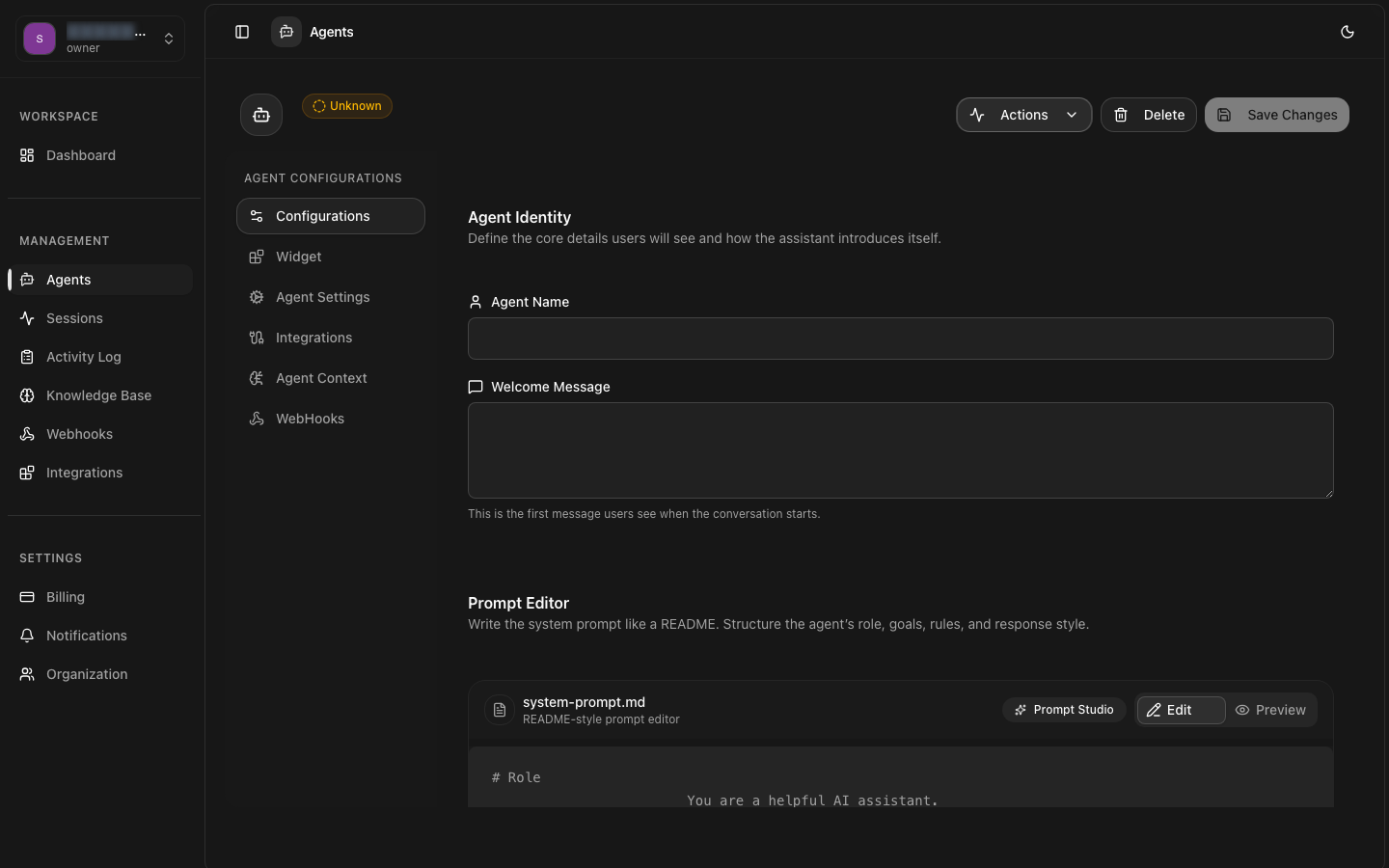
Navigate to Agents
From the dashboard sidebar, click Agents to open the agent management page. Click the Create Agent button in the top right corner.
Basic Information
Enter a name for your agent (e.g., "Customer Support Bot") and an optionaldescription that explains the agent's purpose. Choose a modelfrom the available LLM options.
System Prompt
Write a system prompt that defines your agent's personality, role, tone, and behavioral guidelines. This is the most critical step — the prompt directly controls response quality.
Configure Settings
Adjust LLM parameters like temperature, max tokens, and stop sequences. Optionally enable voice pipeline, connect knowledge bases, and configure channels.
Save and Deploy
Review your configuration, click Save to create the agent in draft state, then Deploy to make it live and available for conversations.
API Creation
Create agents programmatically using the REST API for automation and CI/CD workflows.
API Key Required
Validation and Testing
After creation, validate your agent's behavior before deploying to production.
Playground Testing
Use the built-in playground in the dashboard to send test messages and review responses. Iterate on your system prompt and parameters based on real interactions.
Edge Case Testing
Test with unexpected inputs, ambiguous questions, and edge cases to ensure your agent handles them gracefully. Verify that sensitive topics are handled appropriately.
Response Quality
Monitor response relevance, accuracy, and tone. Use the session logs to review real user interactions and identify areas for improvement.
Next Steps
Your agent is created. Now explore these advanced configurations: