
Sessions
Monitor, analyze, and manage all conversation sessions across your deployed agents. Track real-time activity, review conversation history, and gain insights from comprehensive analytics.
Live Monitoring
Watch active conversations in real-time with auto-refresh and instant notifications
Advanced Filtering
Filter by agent, channel, status, date range, and search across sessions
Analytics Dashboard
Visual metrics showing session volumes, channel distribution, and trends
Activity Logs
Detailed conversation logs with timestamps and full message history
Data Export
Export session data in multiple formats for analysis and compliance
Historical Data
Access complete conversation history with unlimited retention
What is a Session?
A session represents a single conversation between a user and your AI agent. Each session tracks:
Session Metadata
Unique identifier, agent name, channel type (web, phone, Telegram, etc.), start time, end time, and current status.
Conversation Type
Whether it's a text chat, voice call, or video conversation, with appropriate handling for each modality.
Status Information
Current state: Active (ongoing), Completed (successfully ended), Failed (error occurred), or Cancelled (user terminated).
Custom Metadata
Additional key-value data you can attach to sessions for tracking user information, context, or business-specific data.
Live Conversation Monitoring
The Sessions dashboard provides real-time visibility into all active and historical conversations.
Real-Time Updates
The dashboard automatically refreshes every 10 seconds to show the latest session activity. You can toggle auto-refresh on/off as needed.
Dashboard Features
- Auto-Refresh Toggle: Enable/disable automatic updates (10-second intervals)
- Manual Refresh: Force immediate data reload with refresh button
- Active Indicator: Visual pulse animation shows when monitoring is active
- Session Count: Total sessions shown with pagination support
Session Status
| Status | Description | Indicator |
|---|---|---|
| Active | Conversation is currently ongoing | Active |
| Completed | Session ended successfully | Completed |
| Failed | Error occurred during session | Failed |
| Cancelled | User or agent terminated session | Cancelled |
Session History Filtering
Powerful filtering capabilities help you find specific conversations and analyze patterns.
Filter Options
Search
Free-text search across session IDs, agent names, and metadata. Debounced for performance.
Date Range
Filter sessions by start date with flexible date range picker.
Channel
Filter by communication channel (Web, Phone, Telegram, WhatsApp, Mobile SDK, SIP).
Status
Show only sessions with specific status (Active, Completed, Failed, Cancelled).
Agent
Filter sessions by specific agent ID to track agent performance.
Combined Filters
Apply multiple filters simultaneously for precise results.
Pagination
Sessions are paginated with 50 results per page by default. Navigate through pages using the pagination controls at the bottom of the table.
Pagination Features:
- Shows current range (e.g., "Showing 1 to 50 of 234 sessions")
- Smart page number display (shows up to 5 page buttons)
- Previous/Next navigation with disabled states at boundaries
- Direct page number selection for quick navigation
Analytics Dashboard
Get instant insights into your conversation activity with visual metrics cards.
Total Sessions
Cumulative count of all sessions across all agents and channels since account creation.
Use case: Track overall platform usage and growth over time
Active Sessions
Real-time count of currently ongoing conversations. Updates automatically every 10 seconds.
Use case: Monitor live conversation volume and capacity planning
Recent Sessions
Number of sessions started in the last 24 hours. Helps track daily activity patterns.
Use case: Identify peak hours and daily trends
Top Channel
Most-used communication channel with session count. Helps prioritize integration efforts.
Use case: Understand where your users prefer to engage
Metric Updates
Activity Logs
Every session includes detailed activity logs showing the complete conversation flow.
Session Details View
Click on any session in the table to view comprehensive details including:
Session Information
Full session ID, agent name, channel type, session type (chat/voice/video), status, start time, end time, and duration.
Message History
Complete conversation transcript with timestamps, message content, sender identification (user or agent), and message sequence.
Metadata
Custom key-value pairs attached to the session, such as user information, tags, or business-specific data.
System Events
Internal events like connection established, disconnection, errors, agent handoffs, and status changes.
Session Table Columns
| Column | Description |
|---|---|
| Session ID | Truncated unique identifier (shows first 8 characters with ellipsis) |
| Agent | Agent name and session type (chat/voice/video) displayed together |
| Channel | Color-coded badge with channel icon and name |
| Status | Status badge with visual styling (green for active, red for failed, etc.) |
| Started | Relative time format (e.g., "5 minutes ago", "2 hours ago") |
| Duration | Calculated duration in minutes for completed sessions, "Ongoing" for active sessions |
Exporting Session Data
Export session data for analysis, reporting, compliance, or integration with external tools.
Export via Dashboard
Use the export button in the Sessions dashboard to download filtered session data.
CSV Export
Exports session metadata in comma-separated format, perfect for Excel or data analysis tools. Includes all visible columns and respects active filters.
JSON Export
Full session data including metadata and message history in JSON format. Ideal for programmatic processing and integration.
Export via API
Programmatically retrieve session data using the REST API for automation and integration.
Rate Limits
API Reference
Complete API documentation for programmatic access to session data.
GET /sessions
Retrieve a paginated list of sessions with optional filtering.
GET /sessions/metrics
Retrieve aggregate metrics about sessions across your organization.
GET /sessions/:id
Retrieve detailed information about a specific session.
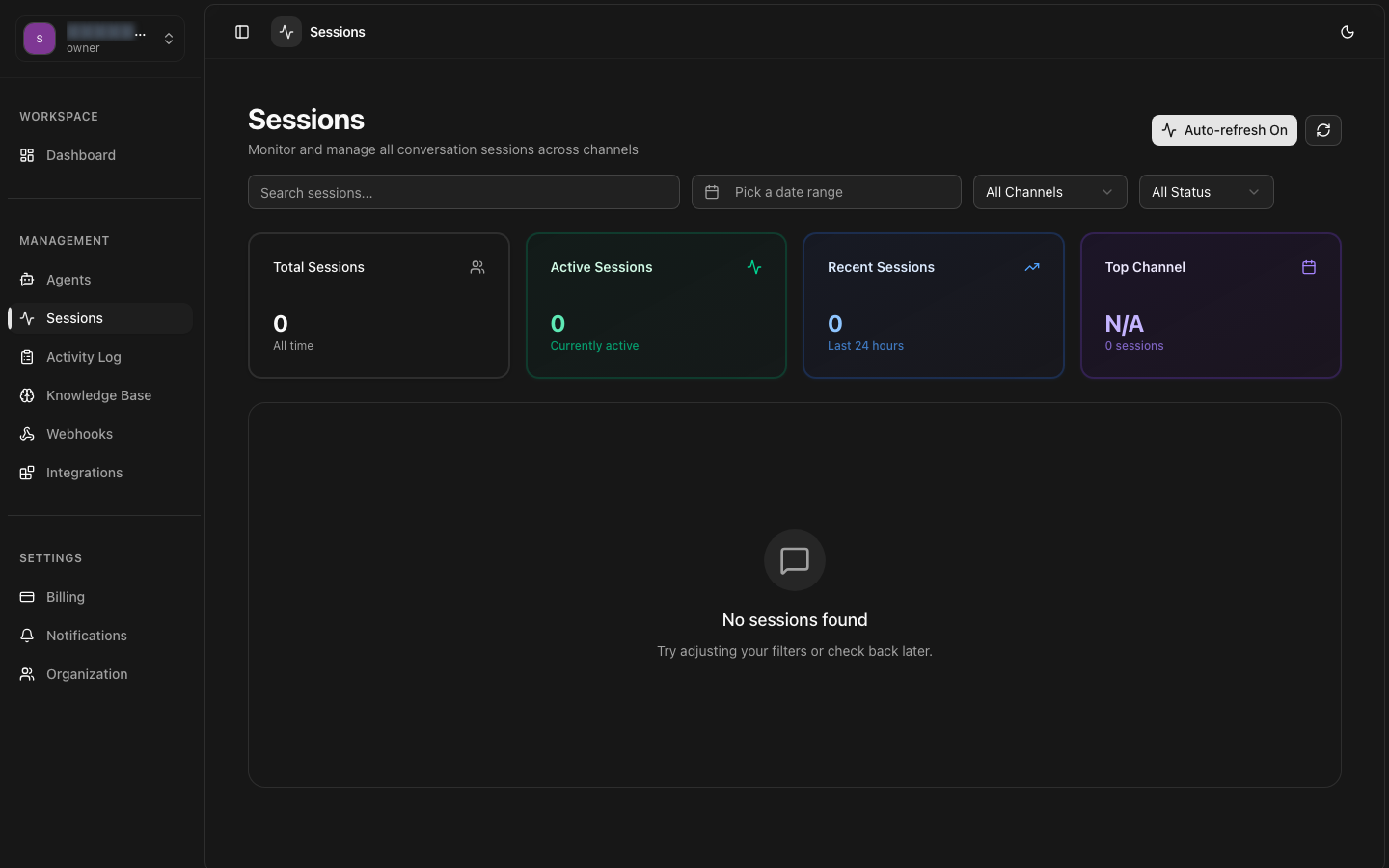
UI Screenshots Description
Visual overview of the Sessions dashboard interface and key features.
Main Dashboard View
Top Section: Page title "Sessions" with subtitle, auto-refresh toggle button (with pulse animation when active), and manual refresh button.
Filter Bar: Horizontal row containing search input (with debounced typing), date range picker with calendar icons, channel dropdown, status dropdown, and clear filters button (appears only when filters are active).
Active Filters: Below filter bar, colored badges show currently applied filters with × close buttons for quick removal.
Metrics Cards: Four prominent cards displaying Total Sessions, Active Sessions (green highlight with pulse), Recent Sessions (blue highlight), and Top Channel (purple highlight) with corresponding icons.
Sessions Table: Data table with columns for Session ID (monospace font), Agent (name + type), Channel (colored badges with icons), Status (color-coded badges), Started (relative time), and Duration (minutes or "Ongoing").
Pagination: Bottom section shows current range (e.g., "Showing 1 to 50 of 234"), page number buttons (up to 5 visible), and Previous/Next buttons.
Channel Badge Colors
Phone: Violet border and background with phone icon
Web: Blue border and background with video icon
Telegram: Sky blue border and background with message icon
WhatsApp: Emerald green border and background with message icon
Mobile SDK: Fuchsia border and background with video icon
SIP: Amber border and background with phone icon
Empty State
When no sessions match the filters: circular gray icon with message icon, heading "No sessions found", and subtitle "Try adjusting your filters or check back later."
Loading State
During data fetch: spinning refresh icon with "Loading sessions..." text centered in the table area. Skeleton loaders shown in metric cards.
Best Practices
Recommended
- • Use auto-refresh during active monitoring periods
- • Apply date range filters to improve query performance for large datasets
- • Export data regularly for compliance and backup purposes
- • Monitor active sessions metric to understand capacity needs
- • Use channel filters to analyze performance by integration type
- • Set up webhooks for real-time session event notifications
- • Review failed sessions regularly to identify issues
Performance Tips
- • Disable auto-refresh when not actively monitoring
- • Use specific date ranges instead of "all time" for faster queries
- • Implement pagination for API exports of large datasets
- • Cache session metrics in your application to reduce API calls
- • Use search sparingly; prefer filters for better performance