
Agent Deployment
Deploy your AI agents to production, manage versions, roll back changes when needed, and publish across multiple environments and channels.
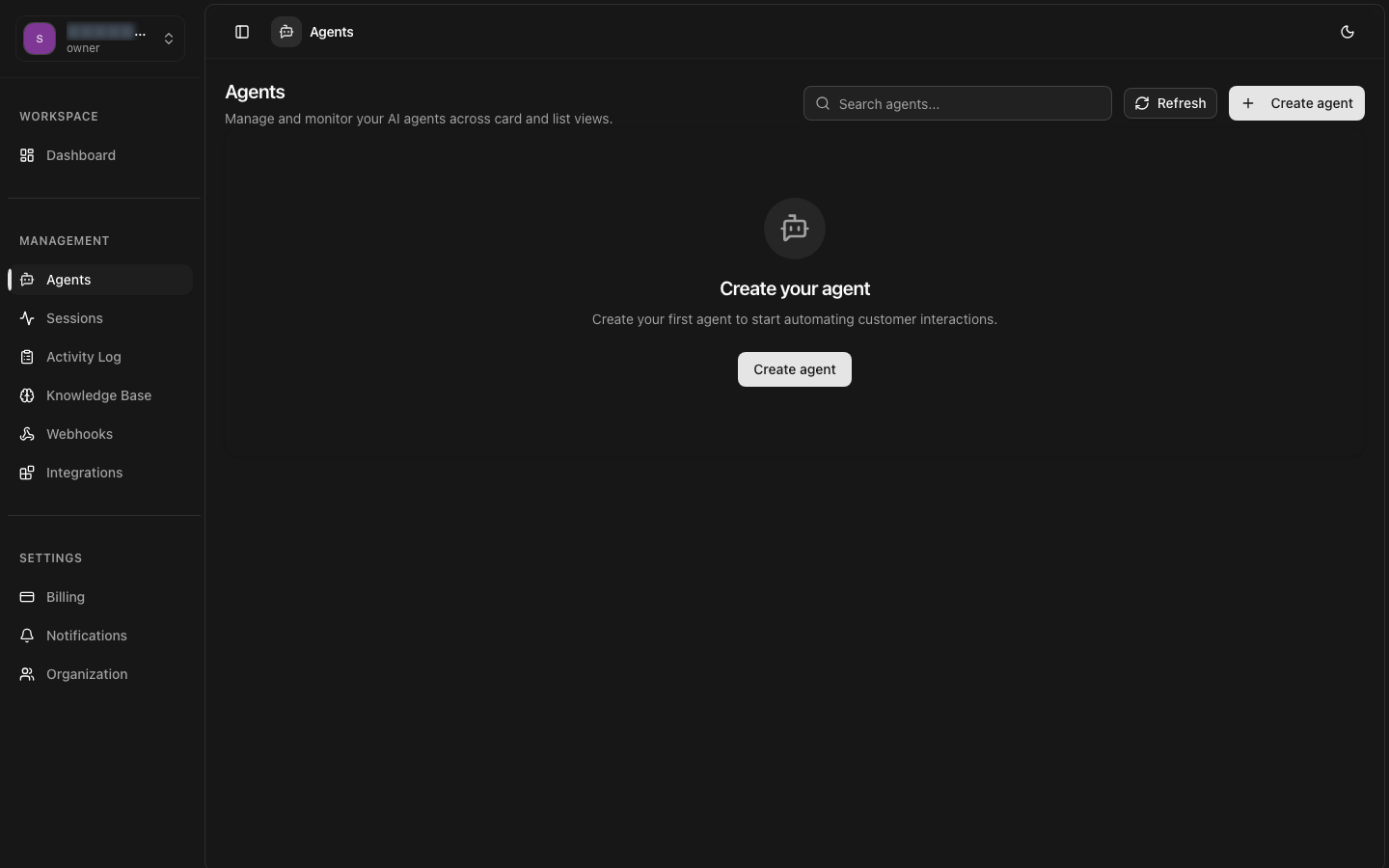
Deploying an Agent
Once your agent is configured and tested, deployment makes it available to handle real conversations. The deployment process is instantaneous — your agent goes live within seconds of clicking the deploy button.
Prerequisites
- Agent must have a name and system prompt configured
- At least one LLM provider must be active
- Knowledge bases (if connected) must be processed and ready
- Voice pipeline (if enabled) must be fully configured
Deployment Methods
Dashboard Deployment
Navigate to the agent detail page and click the Deploy button. The agent status changes from "Draft" to "Active" immediately.
Status Flow: Draft → Deploying → Active (success) or Failed (error)
API Deployment
Deploy programmatically as part of your CI/CD pipeline.
Deployment Environments
8bit-ai supports multiple deployment environments for staged rollouts:
| Environment | Purpose | Traffic | Limits |
|---|---|---|---|
| Development | Active development and testing | Internal only | No rate limits |
| Staging | Pre-production validation | Test users | Standard limits |
| Production | Live user traffic | All users | Plan-based limits |
Environment Isolation
Channel Deployment
Deploy your agent to one or more channels simultaneously. Each channel can have its own configuration overrides.
Version Management
Every deployment creates a new version of your agent configuration. Version management lets you track changes, compare configurations, and maintain a complete audit trail.
Version Tags
Each version is automatically tagged with a semantic version number and can include custom labels for easier identification.
Version History
Access the complete version history from the agent detail page. View what changed between versions, who made the changes, and when deployments occurred. The dashboard highlights differences in system prompts, model selection, and parameters.
Comparing Versions
Use the API to programmatically compare two versions and identify differences.
Automatic Versioning
Rollback
If a deployment introduces issues, you can instantly roll back to any previous version. Rollbacks are immediate and restore the exact configuration from that version.
Dashboard Rollback
Navigate to the Versions tab, find the version you want to restore, and click Rollback. Confirm the action and the agent is restored immediately.
API Rollback
Roll back programmatically for automated incident response.
Rollback Considerations
- Rolling back restores the configuration, but active sessions continue with the current version until they end
- Channel configurations (web widget, Telegram, etc.) are also reverted
- Knowledge base links are restored to the state they were in at that version
- All rollbacks are recorded in the audit log for compliance
Environment Management
Manage multiple deployment environments for staged rollouts and testing.
Promoting Between Environments
After validating in staging, promote a version to production with a single action. This deploys the exact same configuration that was tested.
Environment Variables
Each environment supports custom environment variables that override agent settings for that specific deployment context.
Promotion Approval
Deployment Status Monitoring
Monitor the health and status of your deployed agents in real-time.